



Aspire’s integration with Xero allows businesses to sync outbound expense payments directly into Xero as Spend Money transactions, creating a more connected and reliable bookkeeping workflow. By syncing expenses from Aspire to Xero, finance teams can reduce manual data entry, ensure expense details and receipts are captured accurately, and streamline bank reconciliation within Xero. This guide is designed for business owners, in-house finance teams, and accountants who use Xero and want a clear understanding on how to sync expenses from Aspire to Xero efficiently.
Key Summary
Controlled Expense Sync
Expenses are manually synced from Aspire into Xero, ensuring only reviewed and approved transactions enter the accounting records.
Accurate Spend Money Entries
Synced expenses are created as Spend Money transactions in Xero with correct accounts, tax rates, tracking categories, and receipts.
Strong Accounting Controls
Access is limited to Admin, Finance, and Accountant roles, supporting proper oversight and audit-ready bookkeeping.
Cleaner Reconciliation Workflow
Pre-populated expense data allows faster matching with Xero bank feeds and smoother month-end closes.
Scalable for Growing Teams
Clear role coordination between finance teams and accountants helps maintain accuracy as transaction volumes increase.
What Is the Xero–Aspire Expense Sync Feature?
The Xero–Aspire Expense Sync feature allows expenses paid through Aspire to be recorded directly in Xero in a controlled and reviewable way. Using the “Sync an Expense” function, users can manually push selected outbound payments from Aspire into Xero, ensuring only verified transactions are captured in the accounting records.
“Sync an Expense” is a manual action within Aspire that sends an outbound payment to Xero. Each synced item is created as an accounting entry in Xero, rather than relying solely on bank feeds. This supports accurate expense recognition and clearer audit trails.
Manual syncing of outbound payments from Aspire to Xero
Expenses are synced on demand. Users select individual or multiple transactions in Aspire and trigger the sync to Xero. Before syncing, expense details such as account selection and tax treatment can be reviewed and adjusted, reducing posting errors.
Creation of Spend Money transactions in Xero
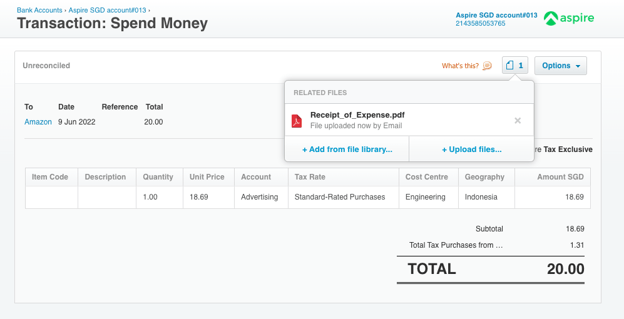
Every synced expense is created in Xero as a Spend Money transaction. This aligns with Xero’s standard expense workflow and ensures transactions sit correctly within the chart of accounts, ready for reconciliation and reporting.
Automatic transfer of expense details and attachments
During the sync, Aspire transfers all required expense information into Xero. This includes the selected Xero account, tax rate, tracking categories, transaction details, and attached receipts. Internal notes are excluded to keep accounting records focused and consistent.
| Expense data from Aspire | How it appears in Xero |
| Amount and date | Spend Money transaction |
| Expense category | Xero chart of accounts |
| Tax rate | Xero tax setting |
| Tracking categories | Reporting dimensions |
| Receipts | Transaction attachments |
How synced expenses fit into Xero reconciliation workflows
Once synced, expenses appear in Xero alongside bank feed transactions. Finance teams and accountants can match the Spend Money entry with the corresponding bank transaction, completing reconciliation efficiently and supporting accurate month-end closing.
Read: A Guide To Xero For Small and Medium Businesses 2026
Who Can Use The Xero–Aspire Expense Sync?
The Xero–Aspire expense sync feature is available only to users with accounting-level access. Limiting access ensures that expenses synced into Xero are reviewed and handled by users responsible for financial accuracy.
User roles with access
Only the following roles can sync expenses from Aspire into Xero:
| User role | Access level |
| Admin | Full control over expense syncing and review |
| Finance | Can prepare and sync expenses to Xero |
| Accountant | Can sync, review, and reconcile expenses in Xero |
These roles are designed for users directly involved in bookkeeping and financial reporting.
Why role permissions matter for accounting control
Restricting expense syncing to authorised roles helps prevent incorrect postings and unauthorised changes in Xero. Proper role permissions support accurate expense classification, consistent reconciliation, and a clear audit trail, which are essential for reliable financial records when integrating Xero with Aspire.
What Expense Data Is Synced from Aspire to Xero?
When syncing expenses from Aspire into Xero, all essential accounting fields required to create a complete Spend Money transaction are transferred. This ensures expenses are recorded accurately in Xero and are ready for reconciliation and reporting.
Before syncing, users can review and confirm each field in Aspire. Once synced, the following data is created in Xero:
| Aspire expense field | How it appears in Xero |
| Expense category | Xero chart of accounts |
| Tax selection | Xero tax rate |
| Tracking categories | Xero tracking categories |
| Transaction amount and date | Spend Money transaction |
| Description | Transaction narrative |
| Receipts | Attached to the transaction |
These fields support accurate expense classification, tax reporting, and management reporting within Xero.
Internal notes entered in Aspire are not transferred to Xero. This keeps accounting records concise and ensures only relevant financial information is stored in Xero.
Correct mapping between Aspire categories and the Xero chart of accounts is critical for accurate bookkeeping. Proper field mapping ensures expenses post to the right accounts, tax treatments are applied correctly, and reports in Xero reflect the true financial position of the business. For companies using Xero as their core accounting system, this accuracy is essential for reliable reconciliation and month-end reporting.
Read: Top 5 Benefits of Using Xero in Hong Kong
How To Set Up Aspire Expense Sync With Xero
Setting up Aspire expense sync with Xero allows outbound payments to be recorded accurately as Spend Money transactions, with full control before anything reaches your accounting records. As a Xero Partner, FastLane recommends completing each step carefully to ensure clean syncing and smooth reconciliation.
Step 1: Access the Xero Expense Sync Workflow in Aspire
Before syncing expenses, confirm that your Xero organisation is already connected to Aspire.
From the Aspire web dashboard
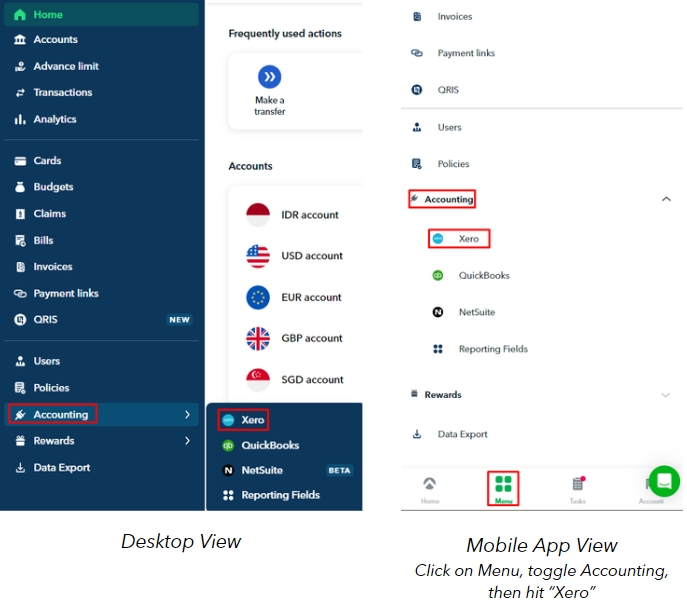
Log in to Aspire, select Accounting from the left navigation, then click Xero to open the integration page.
From the Aspire mobile app
Go to Menu, select Accounting, and tap Xero to access the same sync workflow.
Once inside the Xero section, you will see options to manage and sync expenses.
Step 2: Sync Expenses from Aspire to Xero
Expenses are synced manually, giving you full visibility and control over what is posted into Xero.
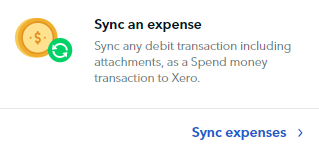
To sync an expense, select the outbound payment in Aspire and review key fields such as the Xero account, tax rate, and tracking categories. When ready, click Sync an Expense. The transaction will be created in Xero as a Spend Money entry.
You can sync expenses individually or in batches, depending on volume and complexity.
Step 3: Map Aspire Categories to Xero Accounts
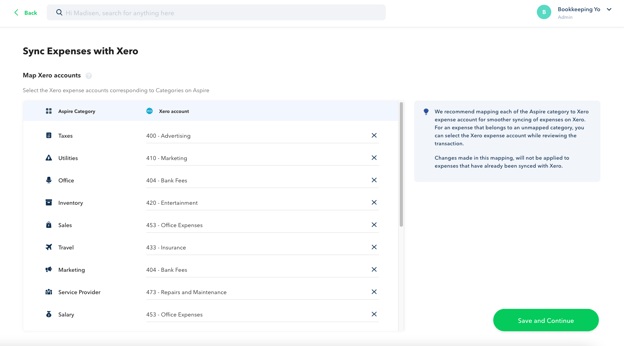
After syncing expenses, you will be prompted to map Aspire categories to your Xero chart of accounts.
This mapping ensures expenses are automatically posted to the correct Xero account in future syncs.
| Aspire category | Mapped Xero account | Result in Xero |
| Office expenses | Office Expenses | Spend Money posted correctly |
| Software tools | Software Subscriptions | Accurate cost classification |
Once mapped, any expense assigned to that Aspire category will link to the selected Xero account by default. You can still override the account for individual transactions or update mappings later if your chart of accounts changes.
Step 4: Review Expenses Before Syncing
The expense sync workflow includes two clear statuses to support accuracy.
| Status | What it means | Action |
| Pending Sync | Expense not yet sent to Xero | Review and edit details |
| Synced | Expense created in Xero | Ready for reconciliation |

While an expense is in Pending Sync, you can edit expense details, including account selection, tax rate, tracking categories, and descriptions. Receipts can also be attached or updated at this stage.
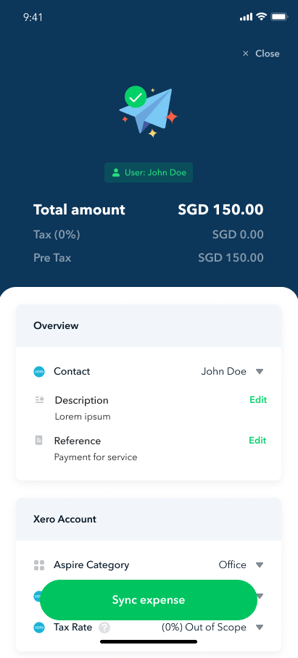
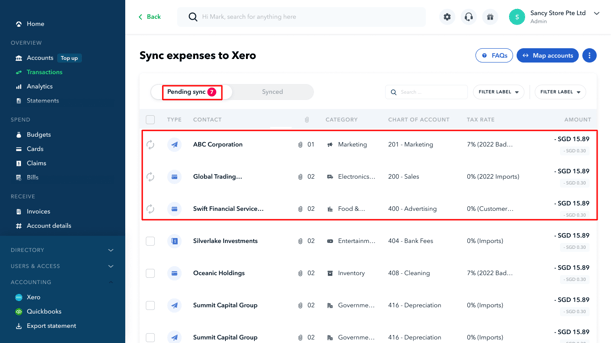
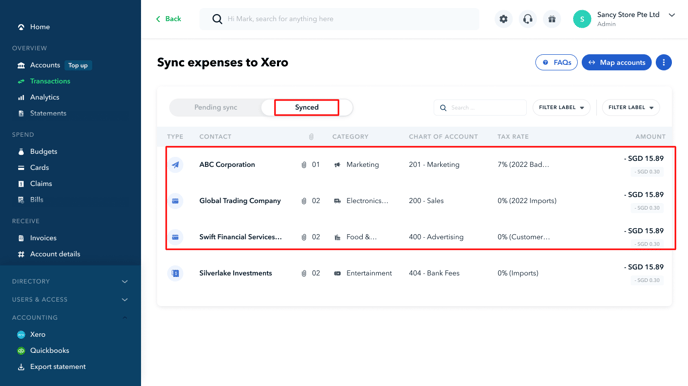
Once confirmed, click Sync expense. The transaction will move to the Synced tab and be created in Xero.
Step 5: Bulk Sync Multiple Expenses
For higher transaction volumes, Aspire allows bulk syncing.
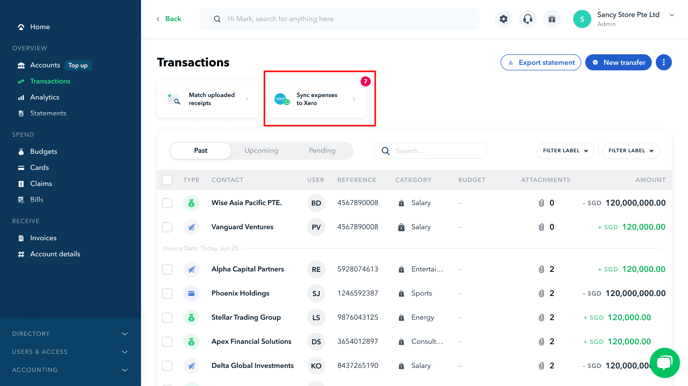
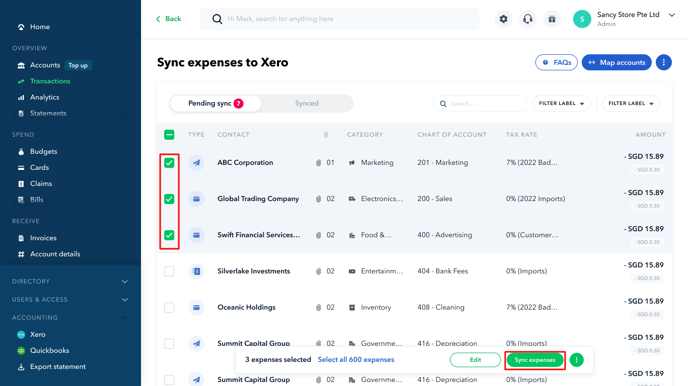
Go to Transactions under the Overview tab, select Sync Expenses to Xero, then choose the expenses listed under Pending Sync. Click Sync Expenses to complete the process.
You can sync up to 1,000 transactions at a time. All synced expenses will be created in Xero as Spend Money transactions, with approved details and attachments included.
Common Aspire–Xero Expense Sync Issues and Troubleshooting
Even with a stable setup, certain issues may arise when syncing expenses between Xero and Aspire. Understanding the root cause helps resolve problems quickly and protects the accuracy of your accounting records.
1. Expense Sync Feature Not Visible
The expense sync feature only appears once a valid connection is established.
If the sync option is missing, confirm that at least one Aspire bank account is connected to your Xero organisation. Without an active bank connection, Xero will not enable expense syncing.
2. Limited Accounts Available for Mapping
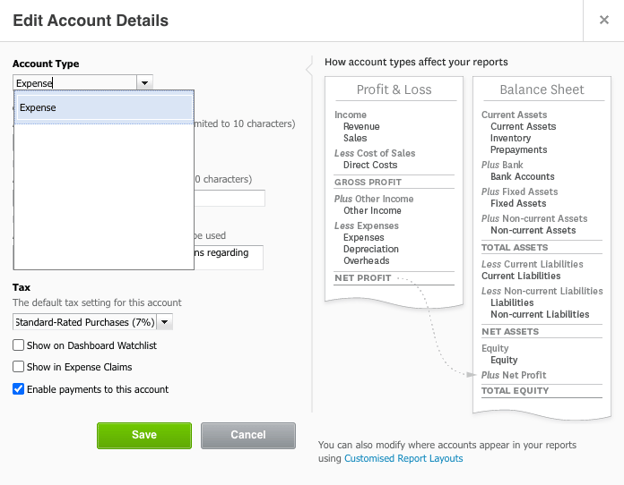
When mapping Aspire categories to Xero’s chart of accounts, you may only see a small number of accounts.
This usually occurs when payments are not enabled on certain Xero accounts. To fix this, log in to Xero, go to Accounting → Chart of Accounts, and enable payments for the relevant expense accounts. Once enabled, these accounts will become available for mapping in Aspire.
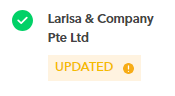
3. “Updated” Labels on Expense Transactions
An Updated label indicates changes made after an expense was first reviewed.
| Location | Meaning |
| Pending Sync | Expense details or attachments were modified and need review before syncing |
| Synced | A previously synced expense was updated and may need to be updated in Xero |
This status helps maintain data integrity by flagging transactions that require attention.
4. Expenses Not Appearing in Xero
If expenses do not appear in Xero after syncing, start by disconnecting and reconnecting Aspire within the integration settings. This refreshes the connection and often resolves sync delays.
If the issue persists, disconnect Aspire directly from Xero and reconnect it from the Aspire platform. This resets the link between both systems and clears underlying connection errors.
5. Sync Errors During Expense Sync
Sync errors can occur at different stages of the workflow.
Errors in Pending Sync are often caused by incomplete or invalid data, such as missing account mapping or tax settings. Review the error details, update the expense, and retry the sync.
Errors in Synced transactions are commonly attachment-related. Xero allows a maximum of 10 attachments per transaction, with each file limited to 3MB. Exceeding these limits will prevent attachments from syncing successfully.
6. Bank Account Connection Conflicts
Connection errors referencing AccountToken, AccountNumber, or AccountId indicate that a Xero bank account is already linked to another Aspire account.
To resolve this, connect Aspire to a “fresh” bank account in Xero. Create a new bank account in Xero’s chart of accounts, then return to Aspire and select the new account during the connection process.
As a best practice, avoid reusing the same Xero bank account across multiple Aspire connections. This reduces conflicts and ensures stable, long-term syncing.
Read: How Xero Helps Build a Digital-First Logistics Business in Asia
Best Practices For Syncing Aspire Expenses To Xero
Applying consistent processes when syncing expenses from Xero to Aspire helps maintain clean records, reduces reconciliation time, and supports accurate financial reporting.
1. Maintain Consistent Expense Categories
Standardise expense categories in Xero before mapping them to Aspire. Consistent category usage ensures expenses flow into the correct accounts and prevents unnecessary adjustments during month-end reviews.
2. Review Expenses Before Syncing
Use the Pending Sync stage to verify account selection, tax rates, and tracking categories. Reviewing transactions before syncing reduces the need for corrections after Spend Money entries are created in Xero.
3. Attach Compliant Receipts
Ensure all receipts meet Xero’s attachment requirements. Each transaction supports up to 10 attachments, with a maximum file size of 3MB per file. Clear and compliant receipts support audit trails and simplify compliance reviews.
4. Reconcile Regularly in Xero
After expenses are synced, reconcile them promptly against Xero bank feeds. Regular reconciliation keeps balances accurate and highlights any discrepancies early in the accounting cycle.
5. Coordinate Between Finance Teams and Accountants
Clear role ownership improves accuracy. Finance teams should handle expense categorisation and receipt review in Aspire, while accountants focus on reconciliation and reporting in Xero. This coordination reduces rework and supports smoother monthly closes.
Conclusion
Syncing expenses from Xero to Aspire creates a controlled and efficient expense workflow, from payment execution to accounting recognition. By using the Xero Sync Expense feature, businesses can convert outbound payments into accurate Spend Money transactions with complete expense details and receipts, reduce manual data entry, and simplify bank reconciliation. With proper account mapping, pre-sync reviews, and regular reconciliation, the Xero and Aspire integration supports cleaner books, faster month-end closes, and more reliable financial reporting.
How FastLane Group Can Help
As a Xero Partner, FastLane Group supports businesses in setting up, optimising, and maintaining their Xero and Aspire expense workflows. Our team provides professional Xero support, bookkeeping assistance, and practical guidance to ensure expense syncing is accurate, compliant, and aligned with your reporting needs. Contact FastLane Group today to streamline your expense management and keep your Xero records audit-ready and up to date. Click here to apply.